
How to connect Google products?
- kwangjin baek
- Dec 6, 2022
- 3 min read


Google products such as Ads, Analytics, and Merchant Center when connected enables to share the data and between the connected account. Since there are many ways to connect one product to another I thought that it would be good to have it organized in one document once and for all. So let's begin.
List of Contents
How to connect
- Connecting Ads and UA, GA4, or Merchant Center from Ads side
- For UA
- For GA4
- For Merchan Center
- Connecting Ads and UA from UA side
- Connecting Ads and GA4 from GA4 side
Audience manager
Conclusion
How to connect
Each product has its own menu to connect to the other product. So I'm going to show you how to connect from one side to another first then the other way around.
Let's start from Google Ads
Connecting Ads and UA, GA4, or Merchant Center from Ads side
Click 'Linked account' in the 'Set up' menu under 'Tools and Settings'
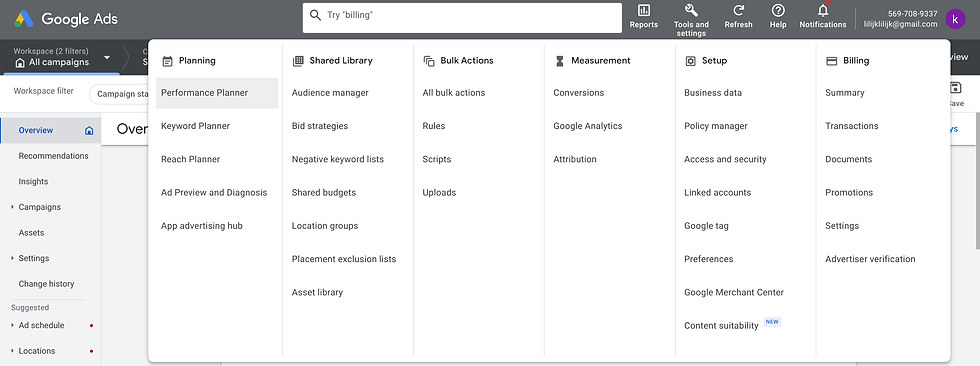
Then you will see the account list under your gmail account (so if you are using a different gmail account in the products that you want to connect, you won't see it here).
Click 'Manage & link'

For UA
The list of all the UA accounts under the same gmail account will appear. Choose the one that you want to connect to and click 'Link'.

Toggle Link and Import site metrics (optional) and click 'Save'

You can unlink either by clicking the '1 view' under 'Views' column or clicking the 'Unlink' under the 'Action' column.

For GA4
The list of all the GA4 accounts under the same gmail account will appear. Choose the one that you want to connect to and click 'Link'.

Toggle check the option (optional) and click 'Save'

You can unlink by clicking the 'Unlink' under the 'Action' column.

For Merchant Center
For connecting the Ads and Merchant center. A request must be sent from the Merchant Center so there is only one way of doing this.
Go to your Merchant Center account and click 'Linked accounts' under 'settings'

The list of all the Ads accounts under the same gmail account will appear. Choose the one that you want to connect to and click 'Link'. Then a request to the Ads account will be sent.

Go to your Ads account and in the 'Linked accounts' menu, you will see the received request. Click 'Manage & link'

Click 'View request'

Then click 'Approve'

You can unlink by clicking the 'Unlink' under the 'Action' column. To reconnect, a new request must be sent from Merchant Center.

Connecting Ads and UA from UA side
Now let's see how the same thing can be done from UA to Ads.
Click 'Admin' on the left bottom corner then in the 'Property' click 'Google Ads Links'

It will show the Ads account under the same gmail account. Check the account number and click 'Continue'

Next, the configuration here seems to have more options than the one from the Ads. You simply type in the 'Title' and 'Link accounts' without selecting any but then only the audience form the UA will be available in the Ads. So I recommend checking them all. And it is done.

Connecting Ads and GA4 from GA4 side
Click 'Admin' on the left bottom corner then in the 'Property' click 'Google Ads Links'

Click 'Link'

Click 'Choose Google Ads accounts'

Click 'Next'

Customize the options for your preference and click 'Next'

Then you will see the list of the Ads accounts under the same gmail account. check the one that you want to connect and click 'Confirm'

Then click 'Submit'

Audience manager
In the audience manager menu, you can check the data source. You might not see all the linked lists under the 'Linked account' menu. To view the data sources select 'Tools and Setting' -> 'Shared Library' -> 'Audience manager'

Conclusion
We have seen ways to connect Google products and I hope this could be a reference when you need to work on connecting some of the products mentioned above.


Comments