
How to create a conversion in Google Ads?
- kwangjin baek
- Dec 5, 2022
- 4 min read


In Google Ads, conversion is the action that you want your customers to take among the other actions, be it clicking a purchase button or staying at your website for a certain amount of time. When you create a conversion in Google Ads it is possible to analyse if your advertisement campaign is actually driving profit. I will show you various ways on how to set up conversions in Google Ads in this writing.
First, let's move to the conversion page. To do so click 'tools and settings' menu on the top menu in your Google Ads account
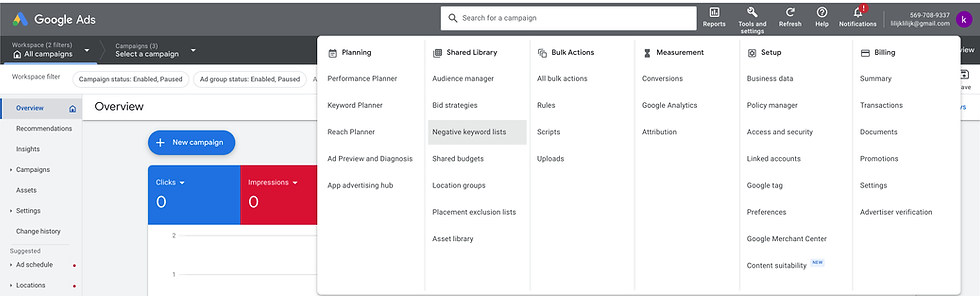
Click '+New conversion action'

Here we see many options:
Website
App
Phone calls
Import

1) Website
Let's go with the 'web' first. Enter the URL of your website and click 'Scan' (either with or without the protocol (http(s):// )

Then there are two options to implement:
Automatic: uses the page URL to fire the conversion.
Manual: the conversion tag is inserted either by itself or through the GTM (Google Tag Manager)
* Comparison of the two
| Automatic | Manual |
implementation | Uses URL. But global tag including the desired Ads configuration must exist on the site for this to work (either manually or through GTM) | The tag must be inserted (either manually or through GTM) |
Pros | - Easy implementation - Tag insertion not required after the initial insertion | - Easy to check if the conversion is firing by comparing the label of each conversion - Can work with various events to fire the conversions not just with the page URL |
Cons | - Not fully automatic (Global tag that includes the Ads configuration must exist for this to work) - Only works with page view events (with a URL) - Hard to identify the individual conversions as it does not show the label in the Ads conversion menu | - Each tag must be inserted |
1 - a) Website - Automatic
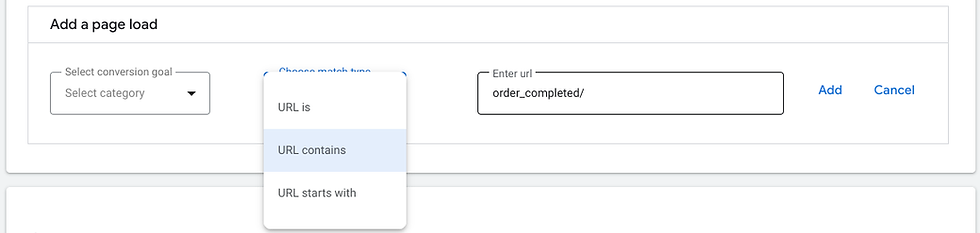
In the box below the box in which we just scanned the URL, fill out the three boxes

First, for the 'category', this will decide which category of the report this conversion will appear.
Secondly, for the 'match type', consider using either 'contains' or 'starts with' as your URL will have clid (an ID to identify each customer) appended in the URL when coming from clicking the advertisement.
Lastly, enter the URL and click 'Add'
Then choose the appropriate option to implement the tag depending on whether you have the global tag with Ads configuration
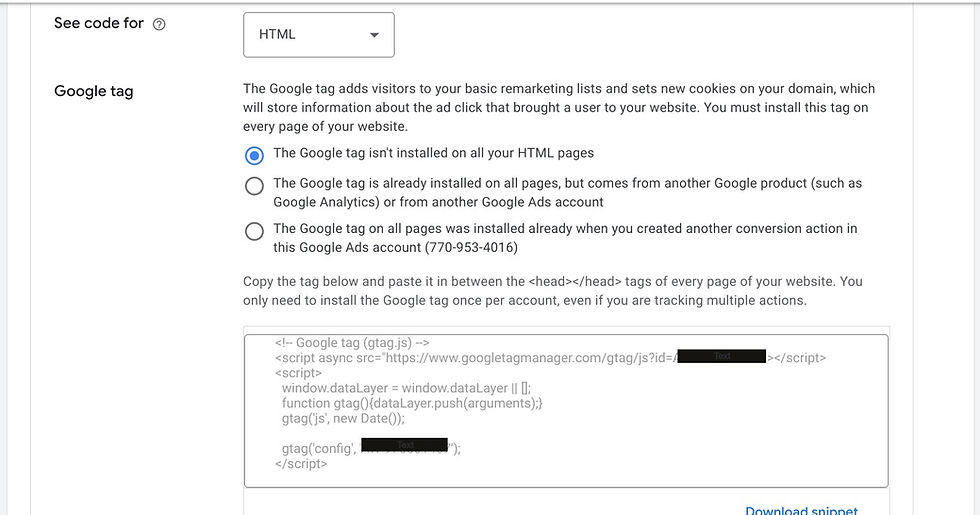
So there are two ways to do this:
Inserting the tag to the website directly
Using GTM
1 - a - 1) Website - Automatic - Inserting the tag to the website directly
- If you don't have any global tag:
click the first option and copy the script in the box, then insert it in the <head> {here} </head> main html
- If you have a global tag inserted but it does not include this Google Ads account configuration:
add the 'gtag('config', 'AW-00000000') to the global tag script
- If you have a global tag in every page with Ads configuration:
No action needed
1 - a - 2) Website - Automatic - Using GTM
go to your GTM container and click 'Tags' under Workspace then click 'New' on the right side

Click 'Tag Configuration' box (any where in the box except for 'Learn More'

Choose 'Google Ads Remarketing'

Enter the 'Conversion ID' (without 'AW-' in the gtag('config', AW-0000000) part)

then click 'Triggering' box at the bottom (you can also set this in the previous page)

Choose 'All pages' then clck 'Save' (leave the rest as the default) on the top right corner (you might be prompted to create a conversion linker)

1 - b) Website - Manual
After scanning your website URL go to the bottom and click '+ Add a conversion action manually'

Choose the category that you want this conversion to appear under the category in the report. Then, enter the conversion name. Ignore the error message as it is just saying that the tag must be inserted.
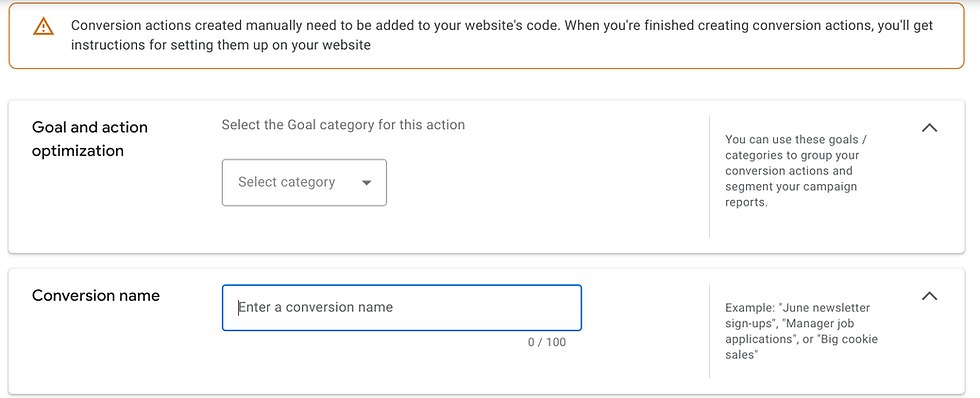
Select desired 'Value' and 'Count'

Unless you have a specific setting in mind, you can leave the rest as default

Lastly, click 'save' at the bottom

Then you will see the list of the manual conversions that are being created. Add as much as you need and click 'Save and continue'.

Then you will see a summary. Click 'Done'

Go to the 'Summary' page (conversion page) again and click the conversion that you have just created

Again we have two options to implement:
Install the tag yourself
Using GTM

1 - b - 1) Website - Manual - Install the tag yourself
Click 'Install the tag yourself'

We need to check if there is a global tag with Ads configuration inserted and have to insert the newly created conversion tag.
For the global tag (same as the automatic implementation)
- If you don't have any global tag:
click the first option and copy the script in the box, then insert it in the <head> {here} </head> main html
- If you have a global tag inserted but it does not include this Google Ads account configuration:
add the 'gtag('config', 'AW-00000000') to the global tag script
- If you have a global tag in every page with Ads configuration:
No action needed
For the conversion tag
Choose 'Page load' as you have to specify the firing event anyways

Then, insert the tag above with the event you want to fire this into a specific page or into the main html <head> tag.
1 - b - 2) Website - Manual - Using GTM
Click 'Use Google Tag Manager'

Then you will see 'Conversion ID' and 'Conversion label'. Note these as we need them later.

go to your GTM container and click 'Tags' under Workspace then click 'New' on the right side
Click 'Tag Configuration' box (any where in the box except for 'Learn More'
Choose 'Google Ads Conversion Tracking'

Enter the 'Conversion ID' and 'Conversion label'

Then click 'Triggering' box at the bottom (you can also set this in the previous page)
Choose a desired trigger (if you need to create your own click '+' button on the top right corner) then click 'Save' (leave the rest as the default) on the top right corner (you might be prompted to create a conversion linker)


Comments